
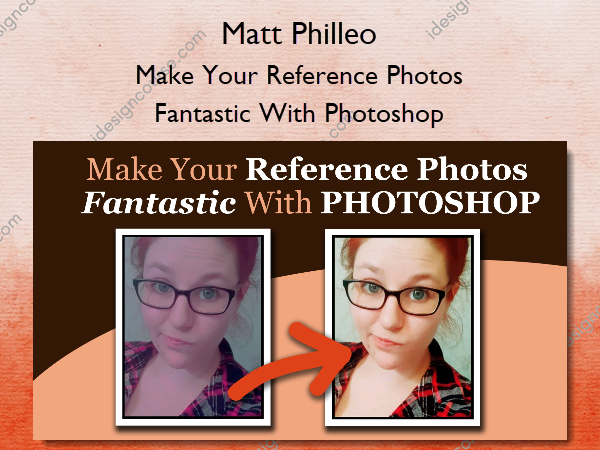
 Make Your Reference Photos Fantastic With Photoshop Information
Make Your Reference Photos Fantastic With Photoshop by Matt Philleo focuses on enhancing reference photos using Photoshop for better painting and artistic creations.
I’ll show you how to use Photoshop to adjust color, skin tones, combine images and more on your reference photo, so you can create a more realistic portrait!
You Need a Good Photo to Make a Great Painting.
It’s hard to make a portrait painting better than the photograph you’re working from. That’s why it’s so important to have a good reference photo to start with.
But you don’t always get that luxury as an artist. Sometimes the photos you are given to work with have color that is off, distracting background, and other elements that would not enhance your painting. Other times, you might need to change a photo to suit the needs of the client: a person needs to be taken out, or added in. A color needs to be changed on clothing. Or maybe Or you just want to make it better so you can give a really nice gift to a loved one.
What if you want to come up with your own design for a painting, combining many photos together. How to do it?
In this class, I will show you how.
I’ll start with the basics: how to get Photoshop (at the best price), how to understand it a bit so you can use it, how to adjust skin tones, combine images, edit them and more.
What You’ll Learn In Make Your Reference Photos Fantastic With Photoshop?
First Section
- Welcome! …And What We Plan to Cover (4:47)
Getting Started With Photoshop
- How to Get Photoshop (4:59)
- An Free Alternative to Photoshop
- Beginning with Photoshop (0:59)
- The Tools and What They Can Do For You (17:32)
- GIMP’s Tools and How they Work (64:10)
- How to Crop an Image (11:34)
- How to Adjust the Value in an Image (14:52)
- How to Adjust Color in Your Image (14:12)
Going Deeper on Adjusting Color in Your Image
- How to Fix an Image that is Too Yellow (4:07)
- How to Fix an Image that is Too Yellow, Part 2 (3:40)
- Fixing an Image that is Too Yellow (GIMP) (14:16)
Photoshop to GIMP: LIVE Trainings with Kevin Fowler
- GIMP’s Tools and How they Work (64:10)
How to Create a Collage Layout of Images
- How I Combined 4 Different Images and a Background into One Layout (20:25)
- How I Combined 2 Different Images into One Layout–Composition, Background, Skin Tones Adjustments (37:34)
Creating a Layout From Several Images
- How to Cut and Paste Part of an Image Using the Lasso Tool (7:23)
- How to Cut and Paste from a Separate Image Using the Quick Select Tool (5:45)
- How to Cut and Paste a Head (8:48)
- How to Adjust a Smile (6:33)
- How to Adjust a Smile, Part 2 (6:36)
- How to Move Someone Over in Your Photo (5:31)
- How to Paint on Top of Someone, Quick Edit (9:30)
- How to Paint on Top of Someone, Quick Edit, Part 2 (4:11)
- How to Clean Up the Background (9:59)
- Hw to Add an Additional Person In (5:36)
- How to Slim Someone Down with Photoshop (20:01)
- How to Substantially Change the Background (9:58)
- How to Add Additional People In, Translucent (3:08)
How to Create a Grid with Photoshop
- How to Create an 8 x 10 Grid (19:53)
Advanced Editing: Changing Facial Expressions and More
- How I Changed the Portrait Challenge Reference Image, Part 1 (23:33)
- How I Changed the Portrait Challenge Reference Image, Part 2 (10:20)
More courses from the same author: Matt Philleo
Salepage: Make Your Reference Photos Fantastic With Photoshop – Matt Philleo
Related products